Norvinsk

Windows · raid command board

NORVINSK

The board you keep on the second monitor. Quests, maps, You from Print Screen, loot prices, hideout, crafts, Kappa, and a raid HUD — one Windows app. Progress stays on this machine.

Current build is 1.0.12. Do not run older Setups. Setup installs NORVINSK. Portable runs without installing. If a download hangs, cancel it in your browser’s download tray and try Setup only. Windows only. No source download.

In raid

Print Screen plots You

Raid-locked. Maps do not hop mid-fight.

Before the drop

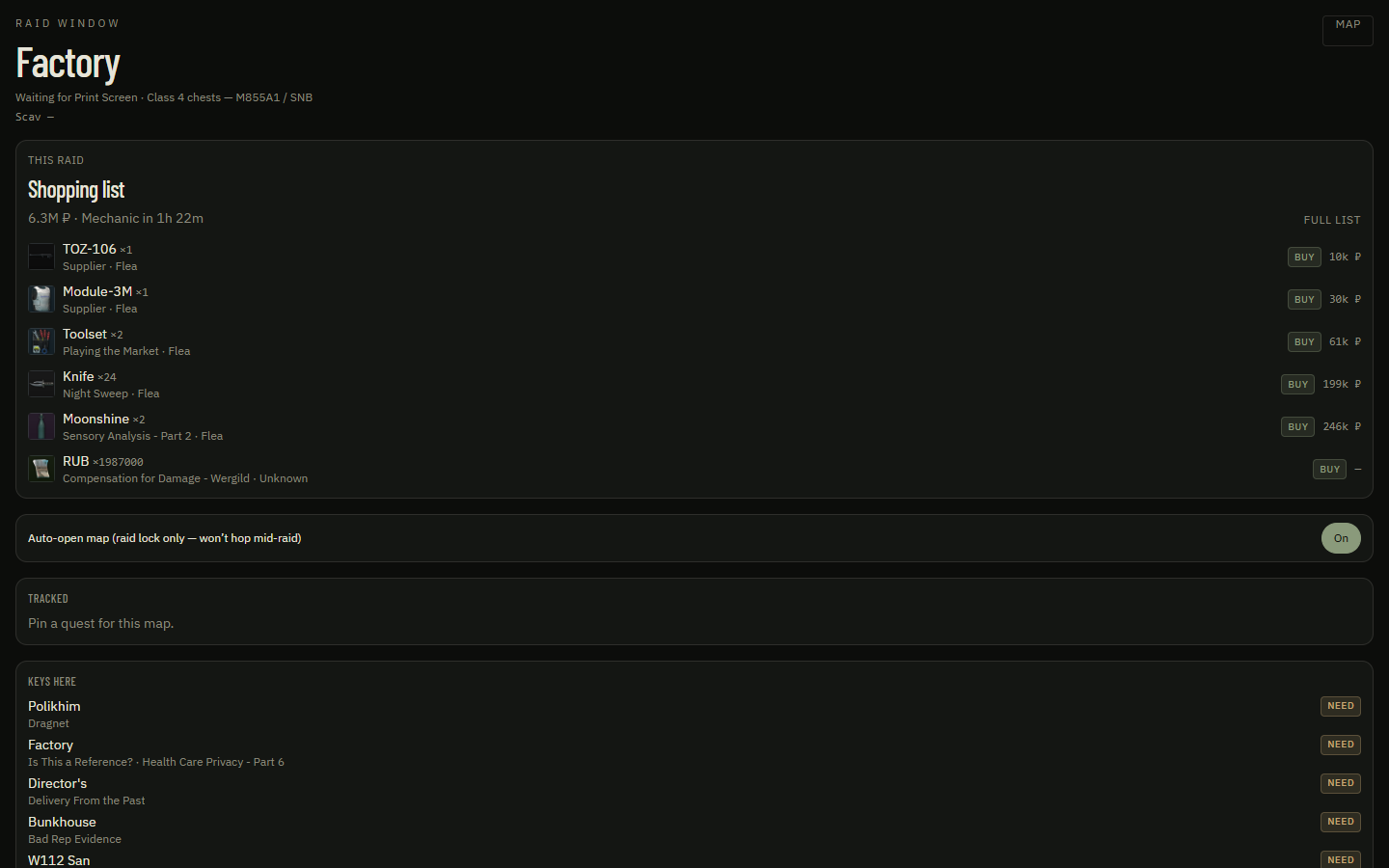
Buy list + Kappa route

Cheapest source, restock, next three ready quests.

After

Extract or death recap

Last GPS against extracts when the session closes.

Every tab

What NORVINSK does

Each shot is a live tab. The copy under it is what that screen can actually do — not a wish list.

Briefing — The raid board before you load in

Briefing

The raid board before you load in

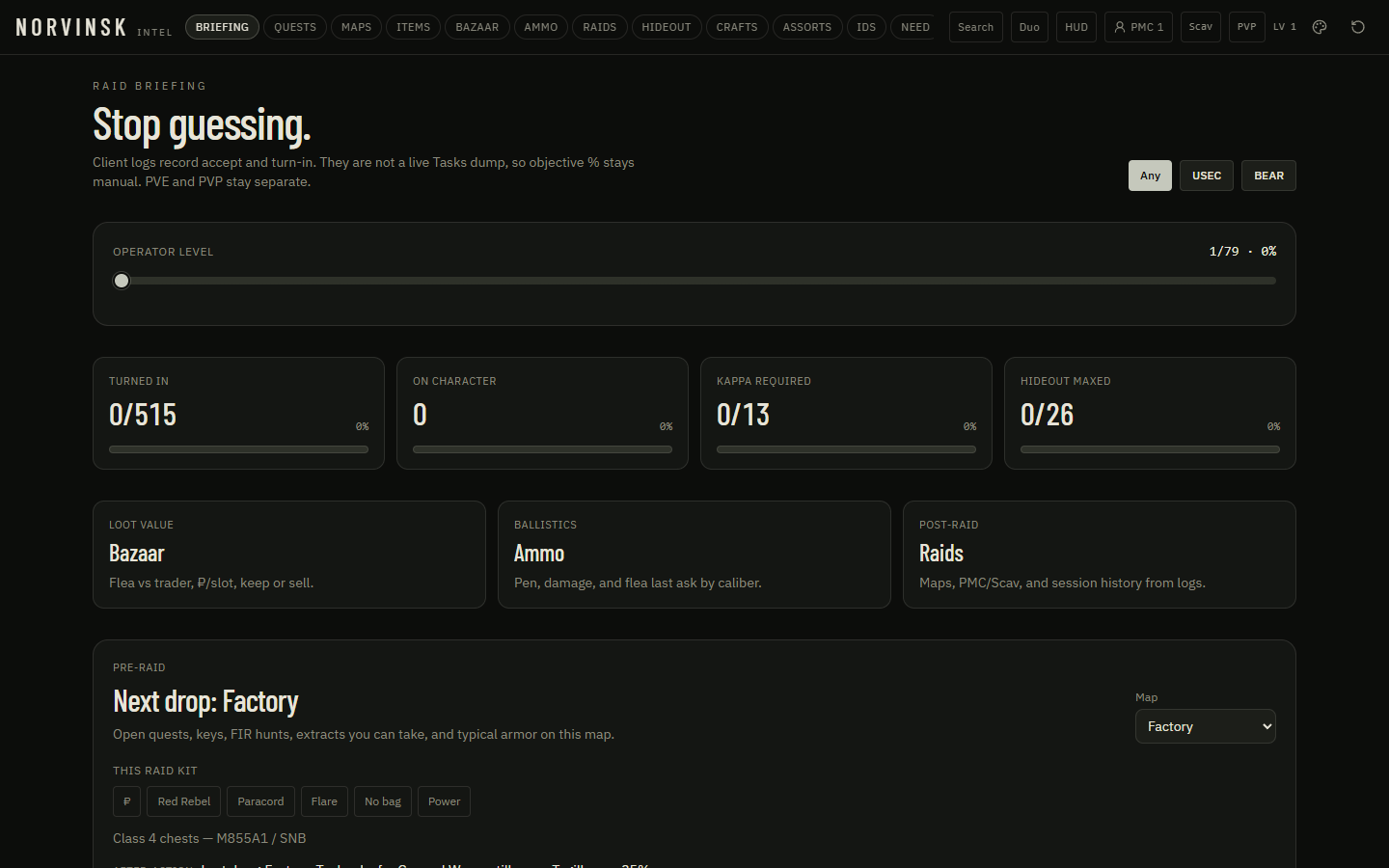
One screen for the wipe: what is still on you, what to buy, which map is worth the next drop, and how far Kappa and the bunker have come.

  • See turned-in quests, active mail, Kappa remaining, and hideout floors at a glance
  • Read the this-raid shopping list with cheapest source, ₽, and restock wait
  • Get the next three Kappa quests, this map first
  • Keep PVE and PVP progress on separate piles
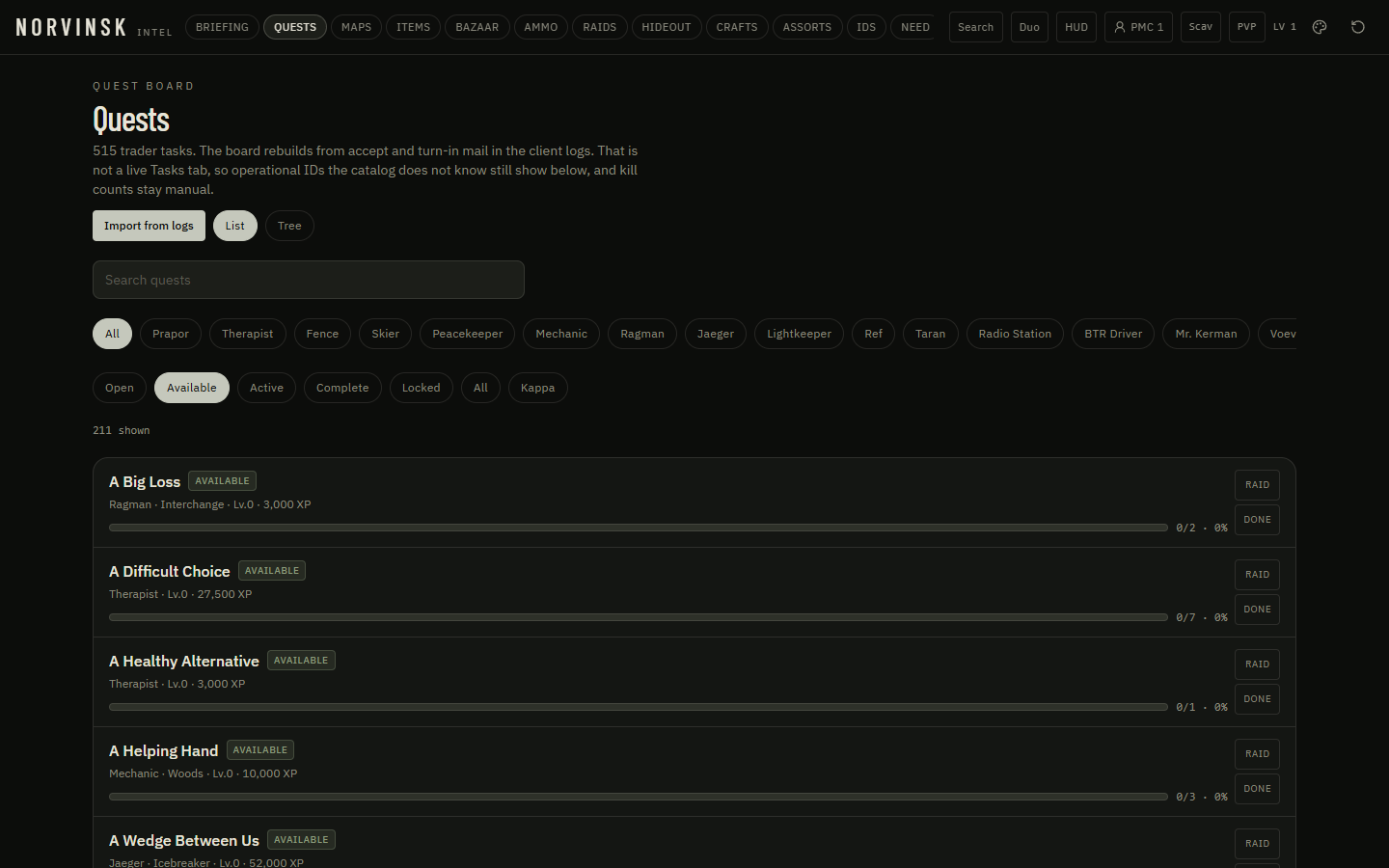
Quests — The full trader board

Quests

The full trader board

Every trader task in one list or tree. The board rebuilds from accept and turn-in mail still on this PC. Kill counts stay yours to tick.

  • Import accept / fail / turn-in from this machine’s Logs
  • Choose the Logs folder if the game lives on another drive
  • Filter by trader, status, or Kappa — turned-in mail sits under Complete
  • Keep operational IDs the catalog does not know in view
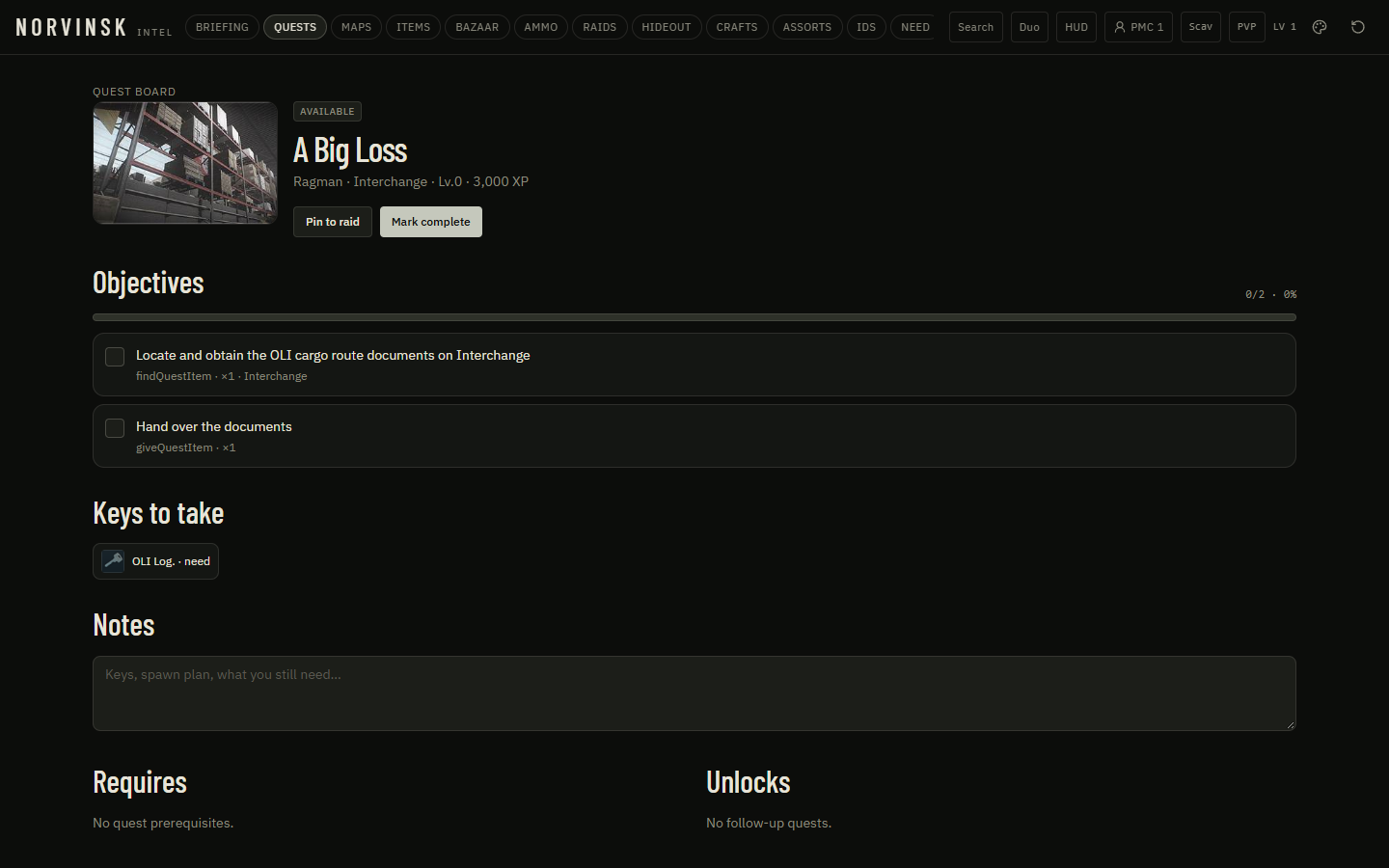
Quest — One quest, every mark

Quest

One quest, every mark

Open a single task and work the objectives, keys, and notes without leaving NORVINSK.

  • Tick required marks and optional steps
  • Pin or unpin from the raid
  • Mark the whole quest complete when you turn it in
  • See which keys you already have on the keychain
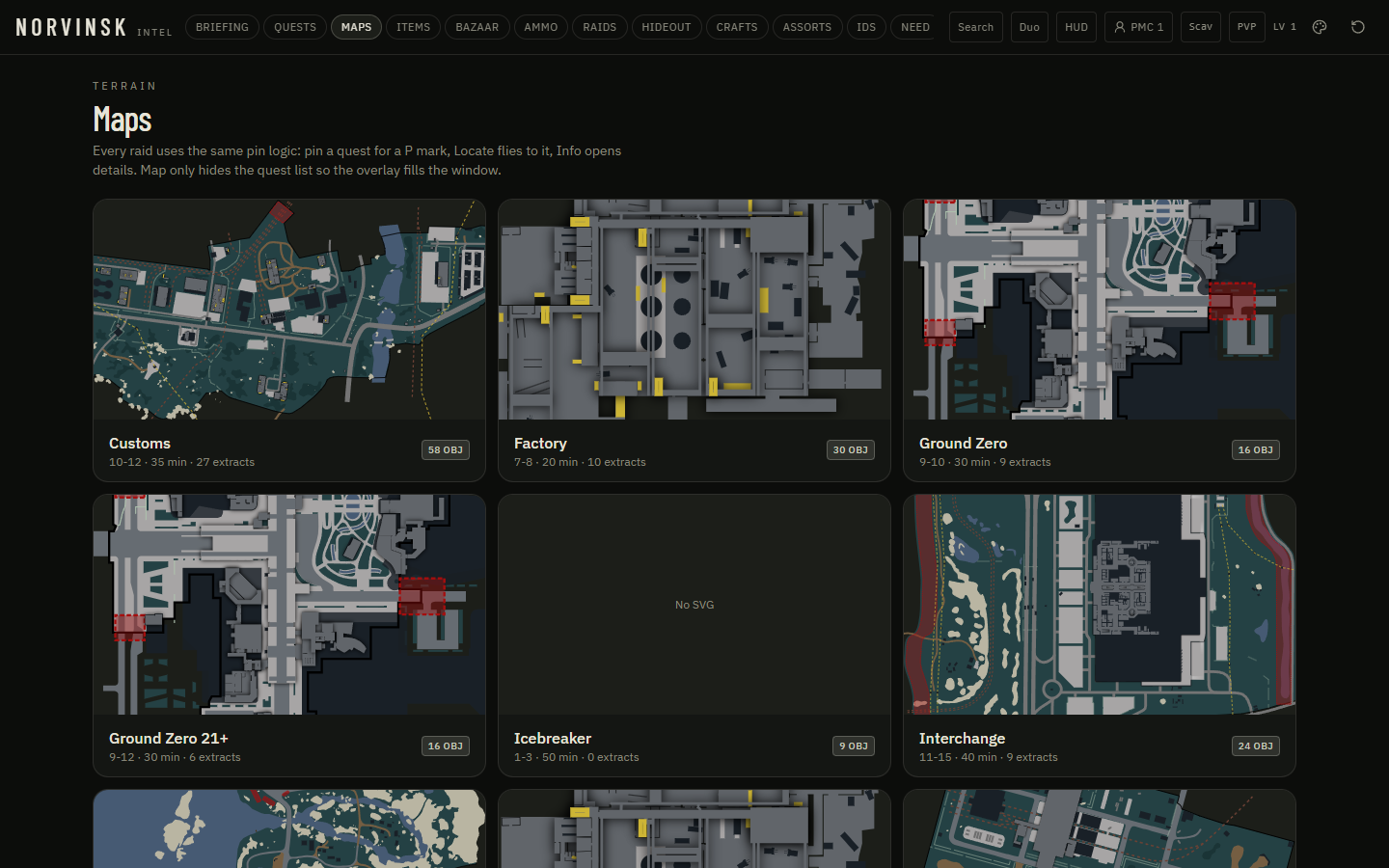
Maps — Every raid on one terrain list

Maps

Every raid on one terrain list

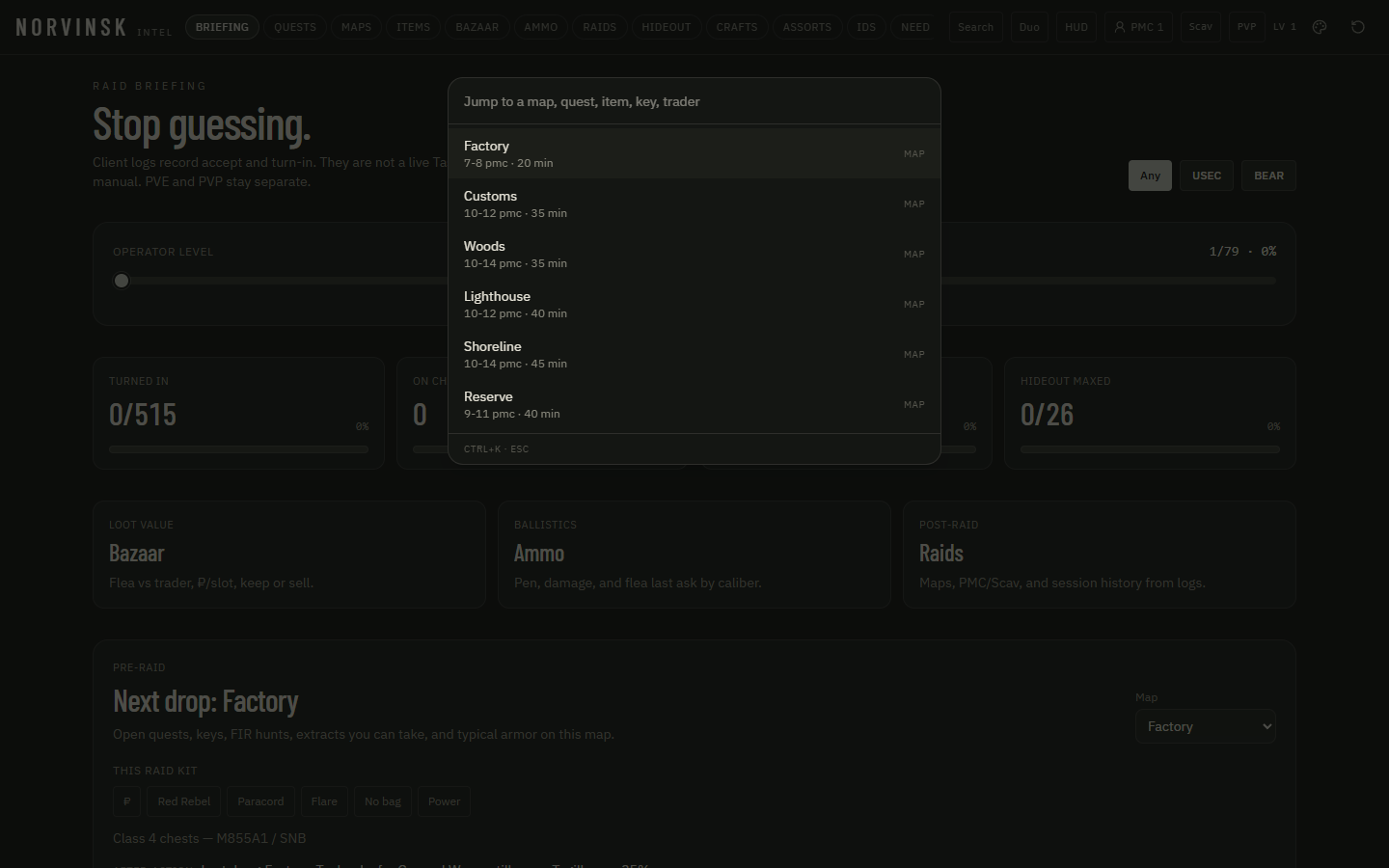
Pick a map by player count, duration, and how many open objectives sit on it.

  • Jump straight into any raid map
  • See open objective counts before you queue
  • Open the overlay-sized map view for a second monitor
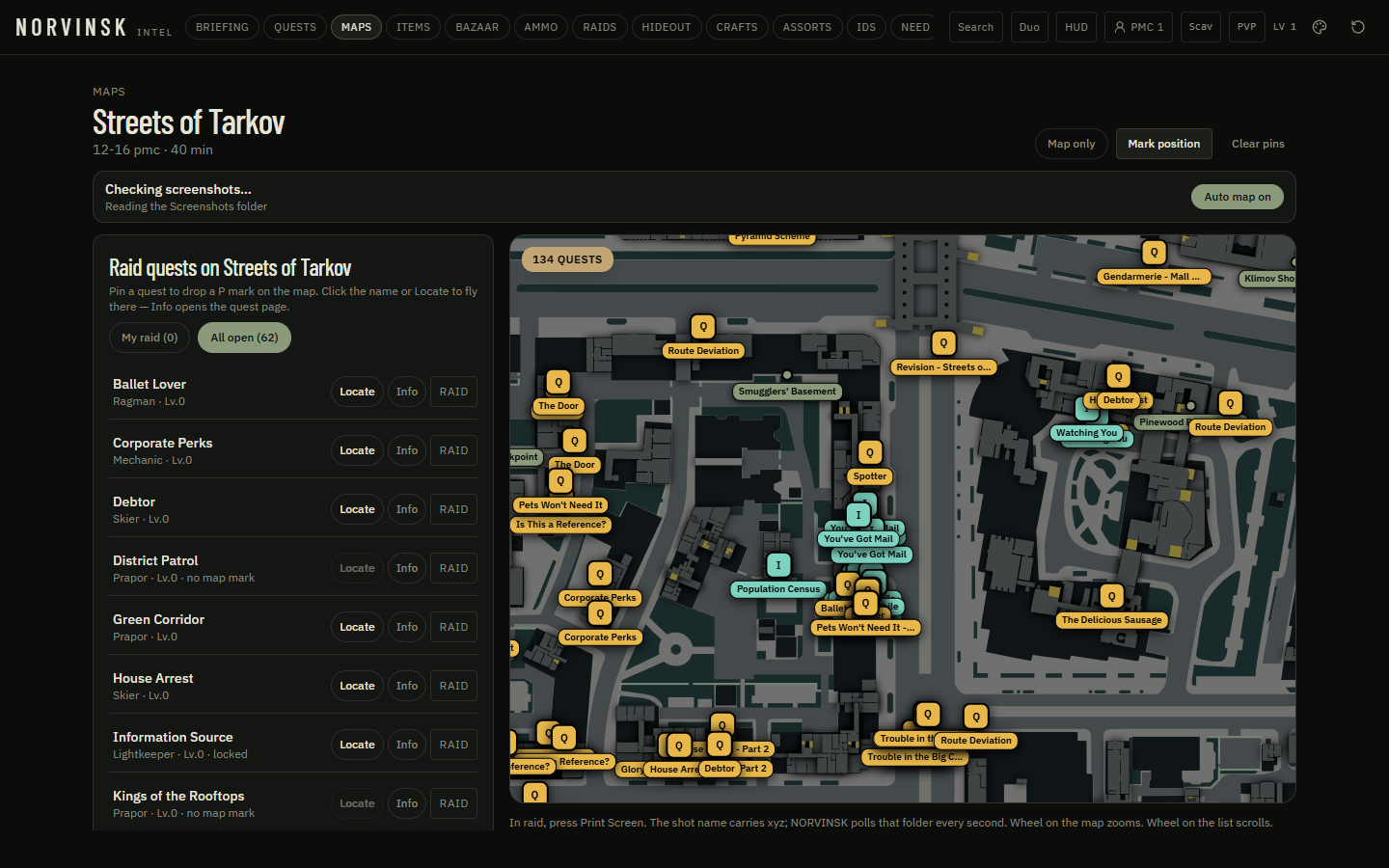
Map — You, extracts, and every Q / I mark

Map

You, extracts, and every Q / I mark

Print Screen in raid. NORVINSK reads the shot and plots You. Quest marks stay on the map even when you are only tracking them. Pins are tracking — they never hide a quest.

  • Plot You from the latest in-raid Print Screen without hopping maps mid-raid
  • Toggle quests, extracts, bosses, transits, switches, and your own marks
  • Mark an objective done or turn the quest in from the pin
  • See a duo’s live You ping and who placed each mark
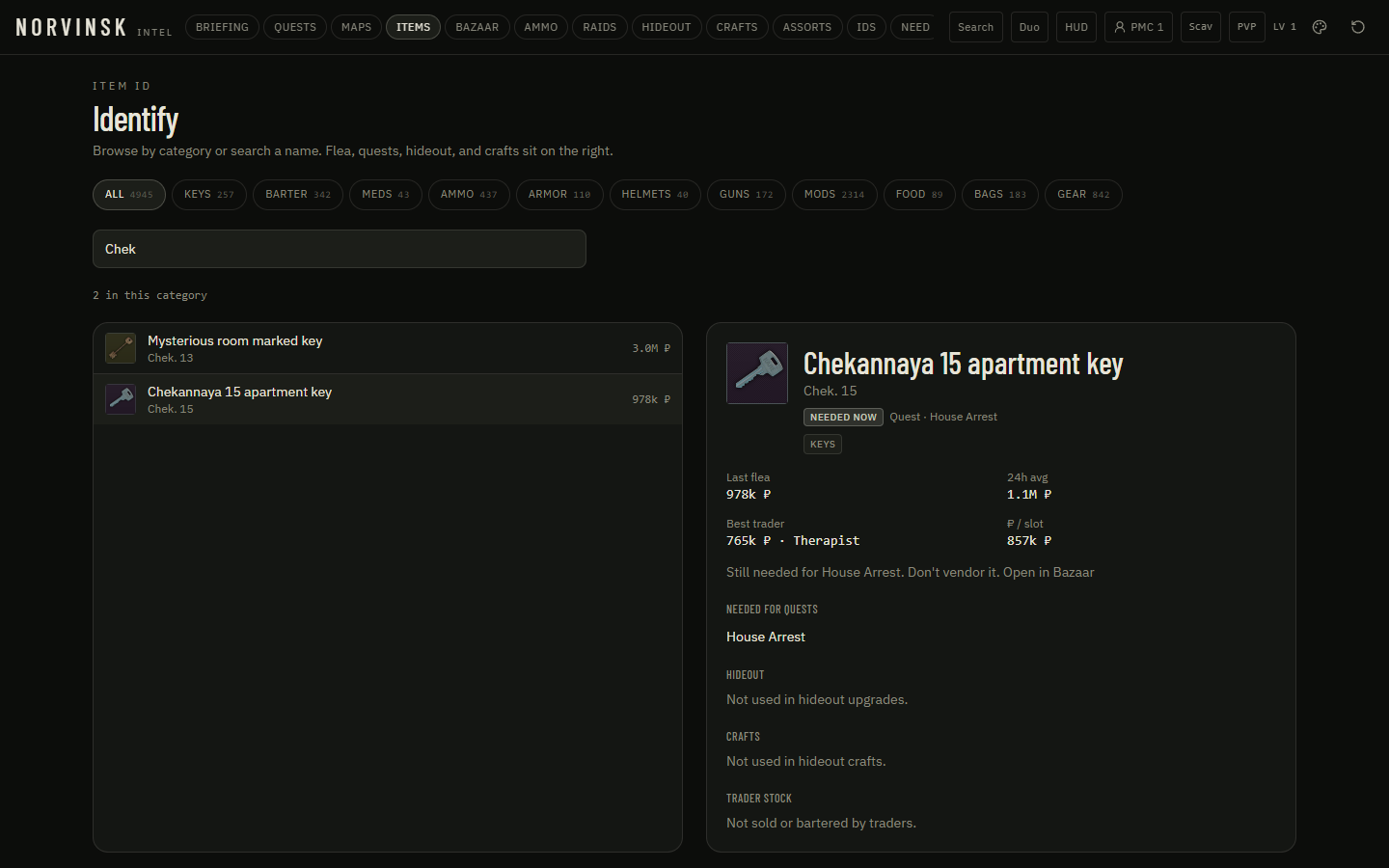
Items — The catalog with a needed stamp

Items

The catalog with a needed stamp

Search any item. If a quest, hideout floor, or Gunsmith part still wants it, NORVINSK stamps why.

  • Find an item by name and see flea last ask
  • Read Needed now — quest, hideout, or smith — on the row
  • Open cheapest source: flea, trader LL, or craft
  • Add a find to the haul from here
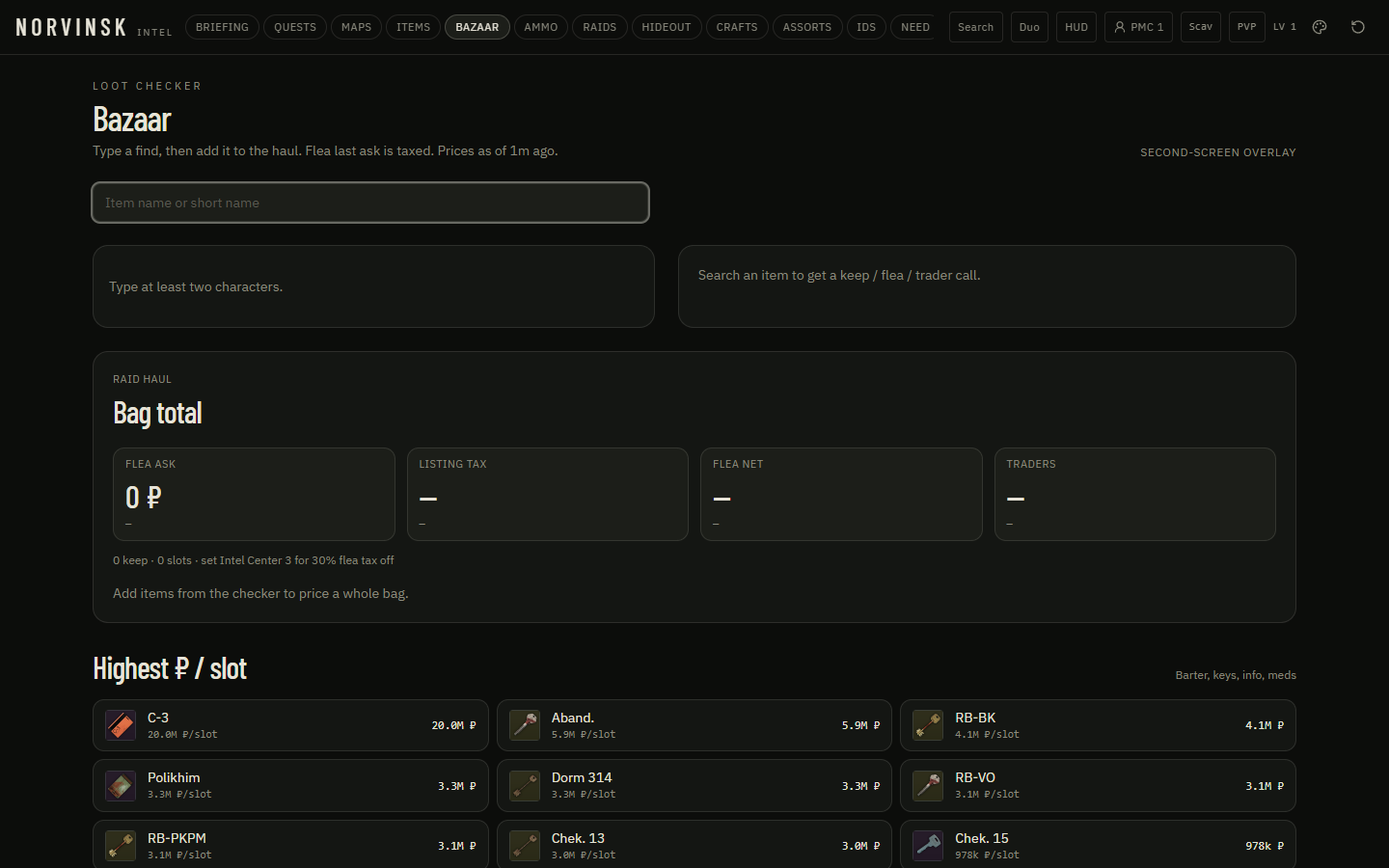
Bazaar — Loot checker while the bag is open

Bazaar

Loot checker while the bag is open

Type a find, see flea vs trader after tax, and decide keep or sell before you extract.

  • Price a haul with taxed flea last ask
  • Compare trader buyback against the flea
  • Add lines to a running haul
  • Open a second-screen overlay that stays on top of the raid
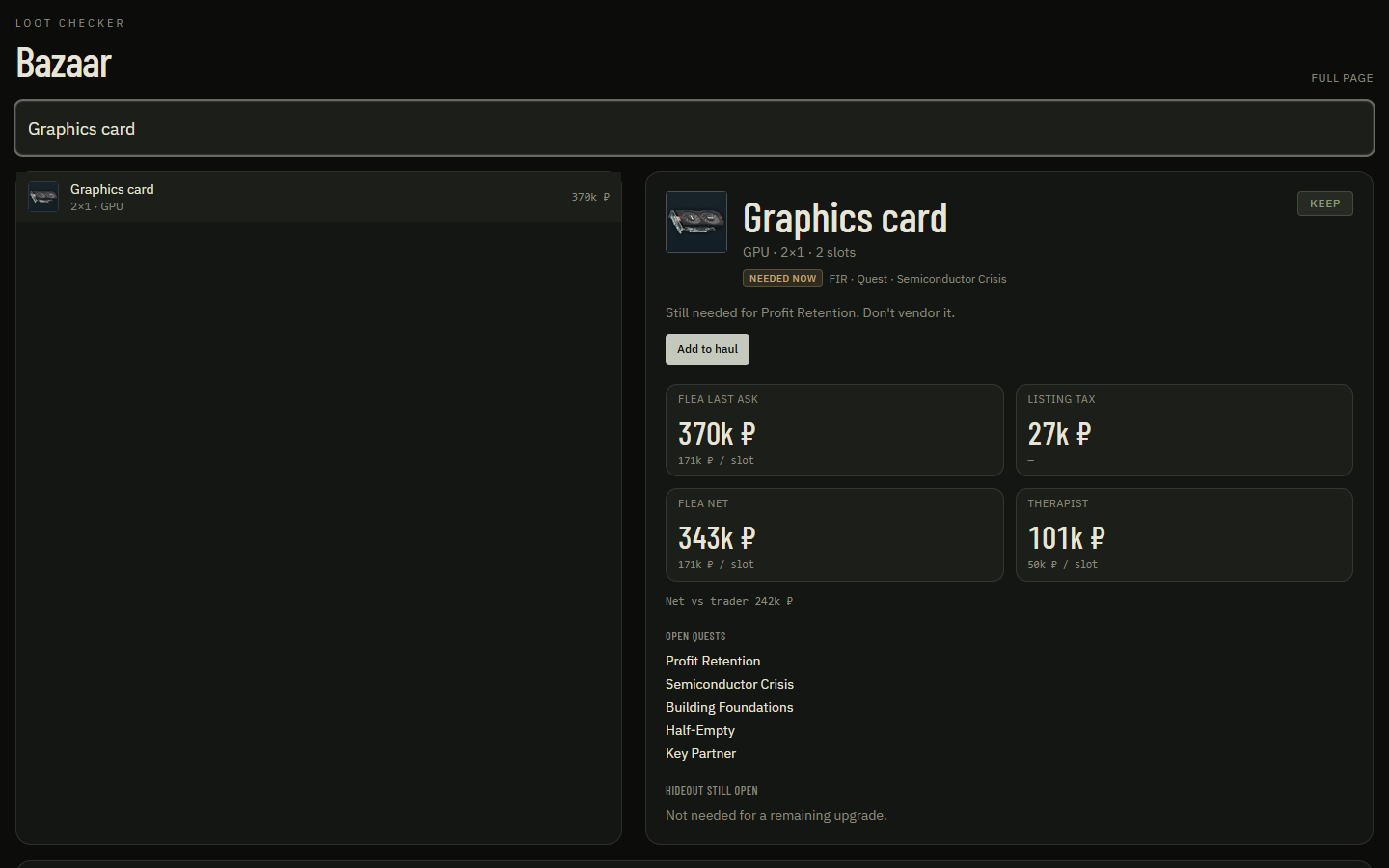
Bazaar overlay — Second-screen loot window

Bazaar overlay

Second-screen loot window

The same bazaar, stripped for a side monitor. Type, price, keep moving.

  • Run next to the game without the full intel chrome
  • Price a find in one field
  • Keep the haul visible while you loot
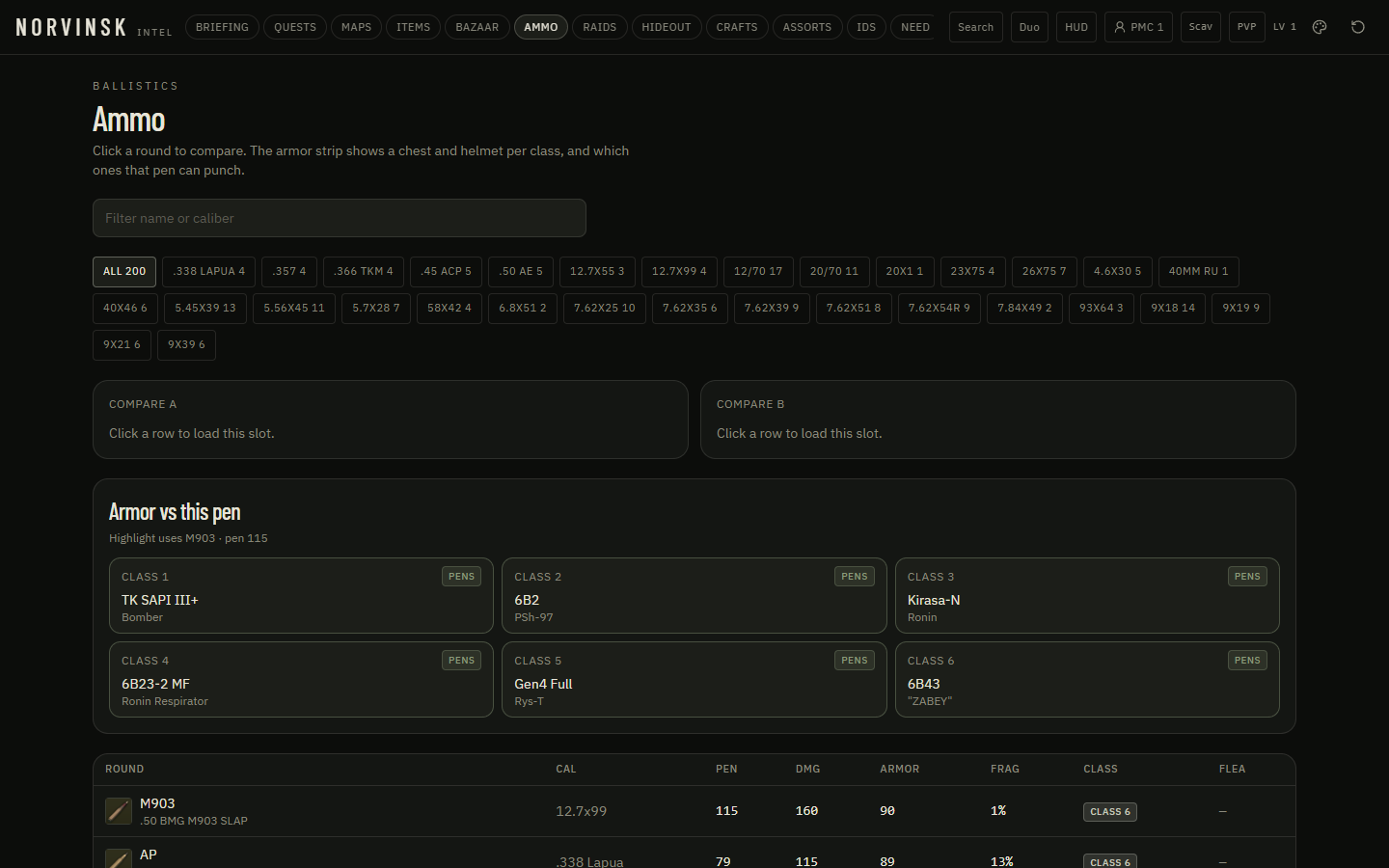
Ammo — What actually pens the kit in front of you

Ammo

What actually pens the kit in front of you

Caliber, pen, damage, and last ask. Line a round up against the armor class you expect to meet.

  • Filter by caliber
  • Compare pen and flesh damage
  • See flea last ask next to the round
  • Judge ammo against armor class before you buy a stack
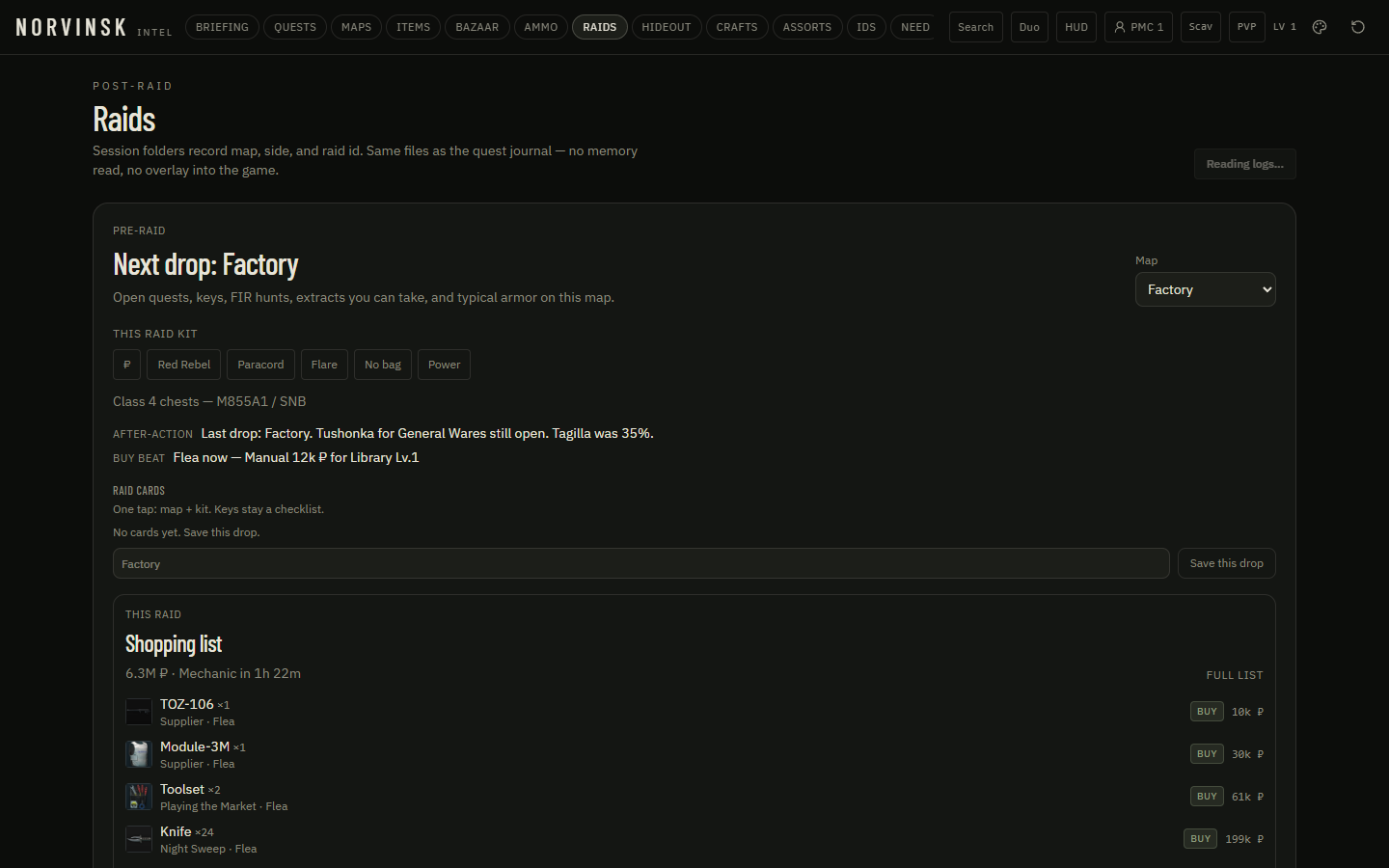
Raids — What the last session actually did

Raids

What the last session actually did

NORVINSK reads raid folders from Logs. When a raid closes, last GPS versus extracts becomes a recap — extracted or died.

  • Browse PMC and Scav sessions by map and duration
  • Read the last-raid recap from GPS and the session folder
  • Refresh after you get out
  • Keep PVE and PVP histories apart
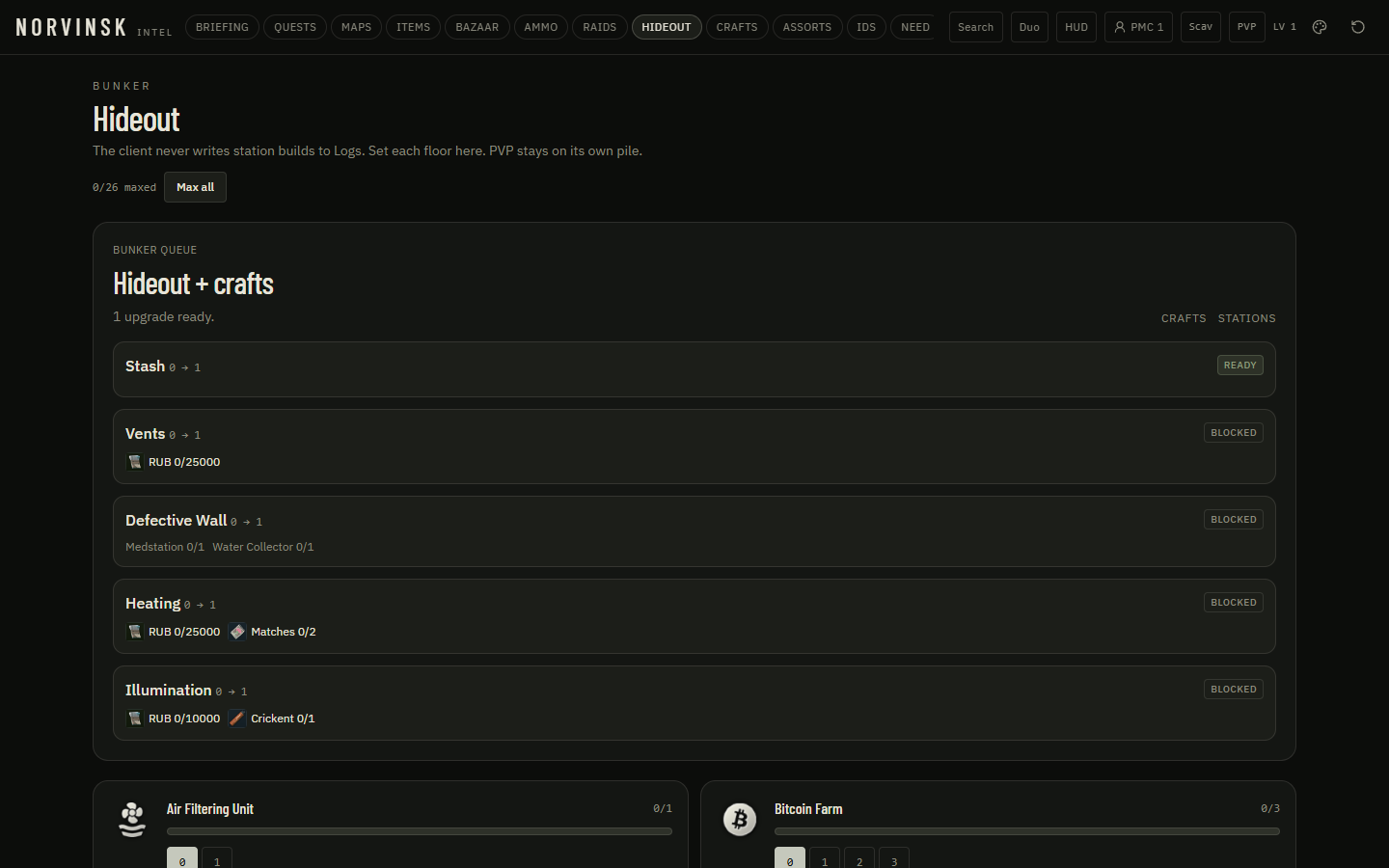
Hideout — The bunker as one queue

Hideout

The bunker as one queue

Logs never write station builds. Set each floor here. Ready upgrades, blockers, and cooking crafts sit in one bunker queue.

  • Set every station level by hand
  • See the next build that is actually ready
  • Name the item or station still blocking a floor
  • Keep PVE and PVP hideouts on their own pile
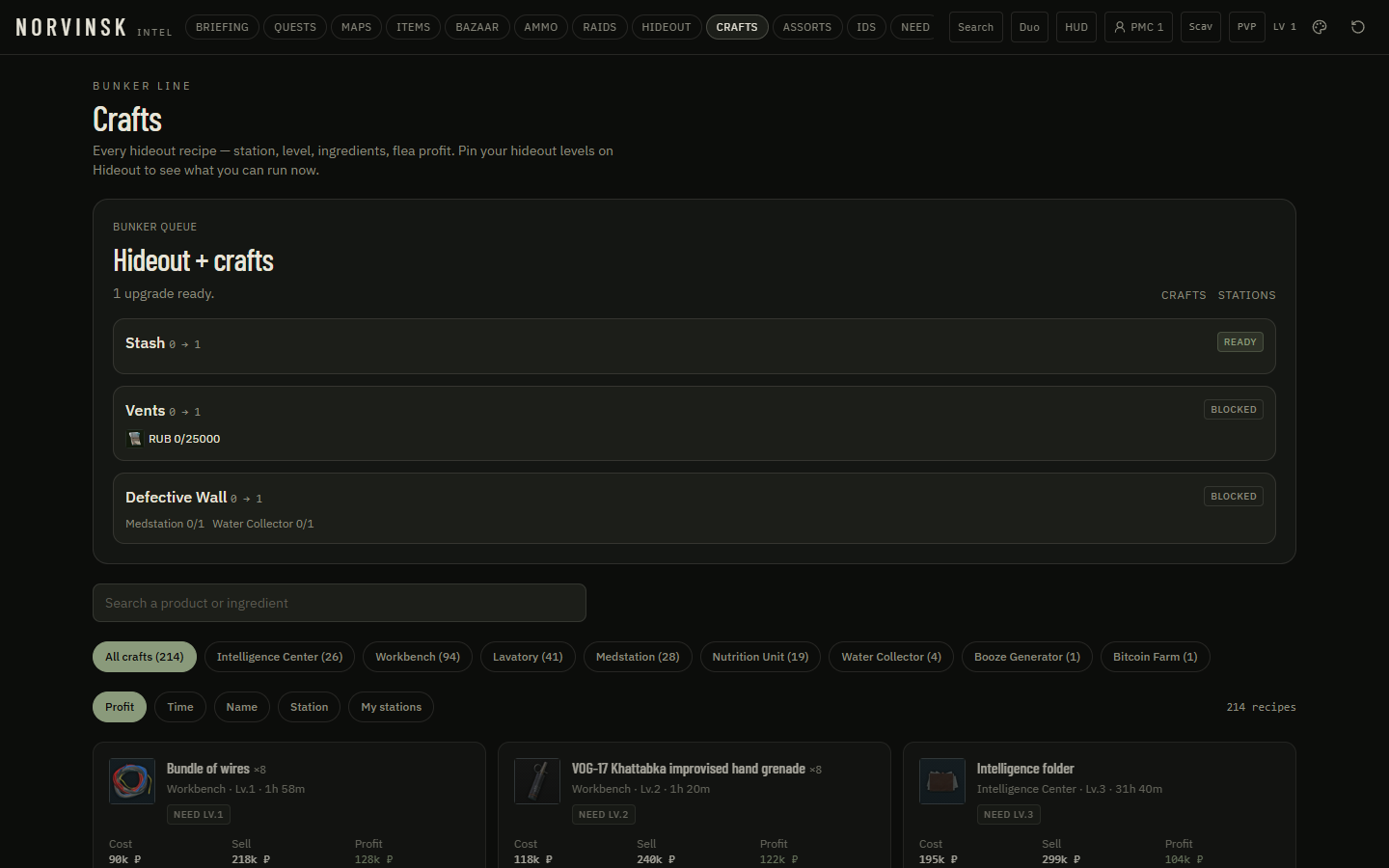
Crafts — What is cooking and what is ready

Crafts

What is cooking and what is ready

Craft timers, required mats, and a ping when a job finishes. Tap a done craft to clear it.

  • See duration and required items per craft
  • Hear when a craft is ready
  • Clear finished jobs from the queue
  • Jump from a craft back to the item you need
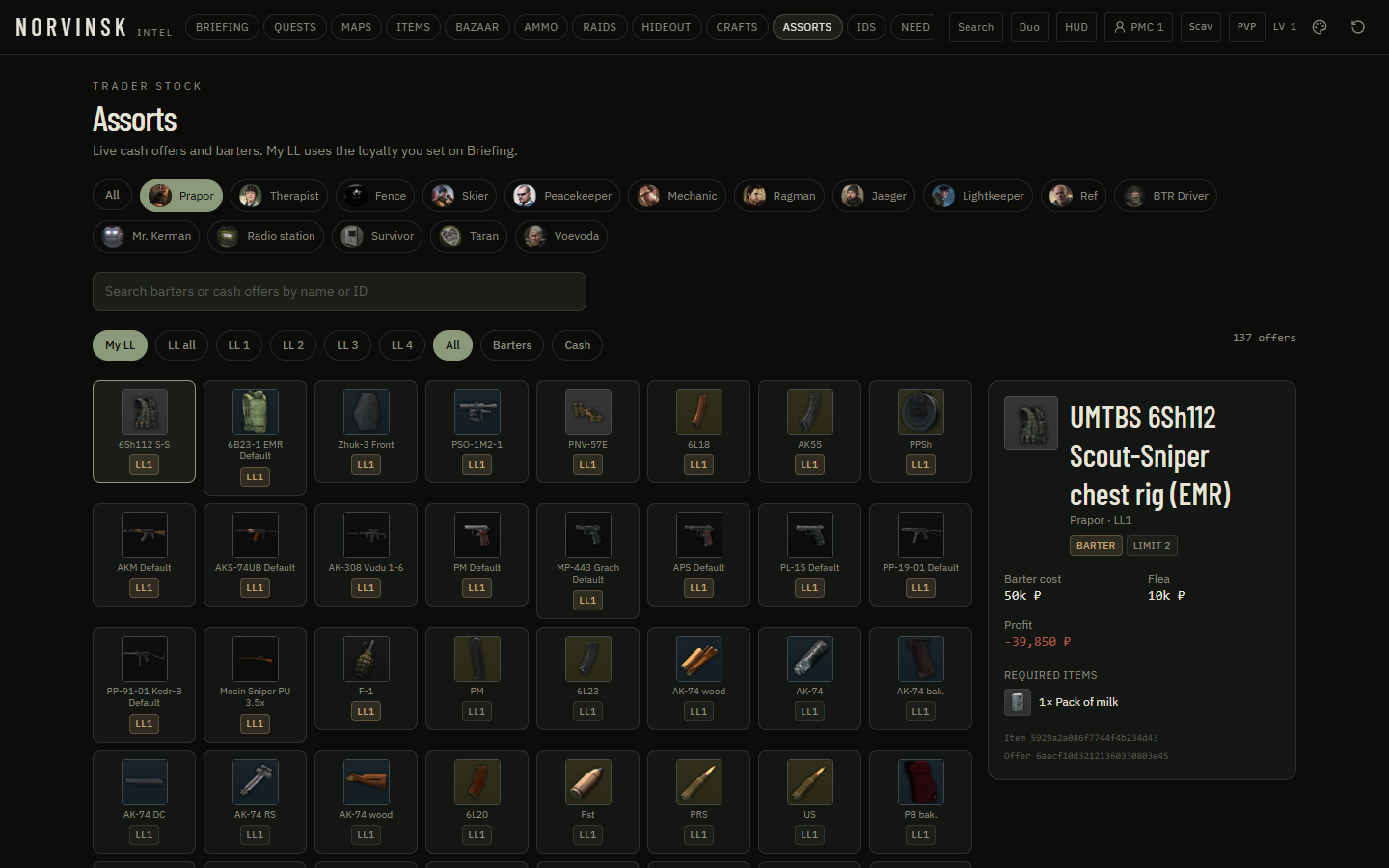
Assorts — Trader stock and the restock clock

Assorts

Trader stock and the restock clock

What each trader is selling right now, at which loyalty, and when the next restock hits.

  • Browse cash and barter offers
  • Watch restock countdowns
  • See the loyalty lock on an offer
  • Ping when a restock you care about lands
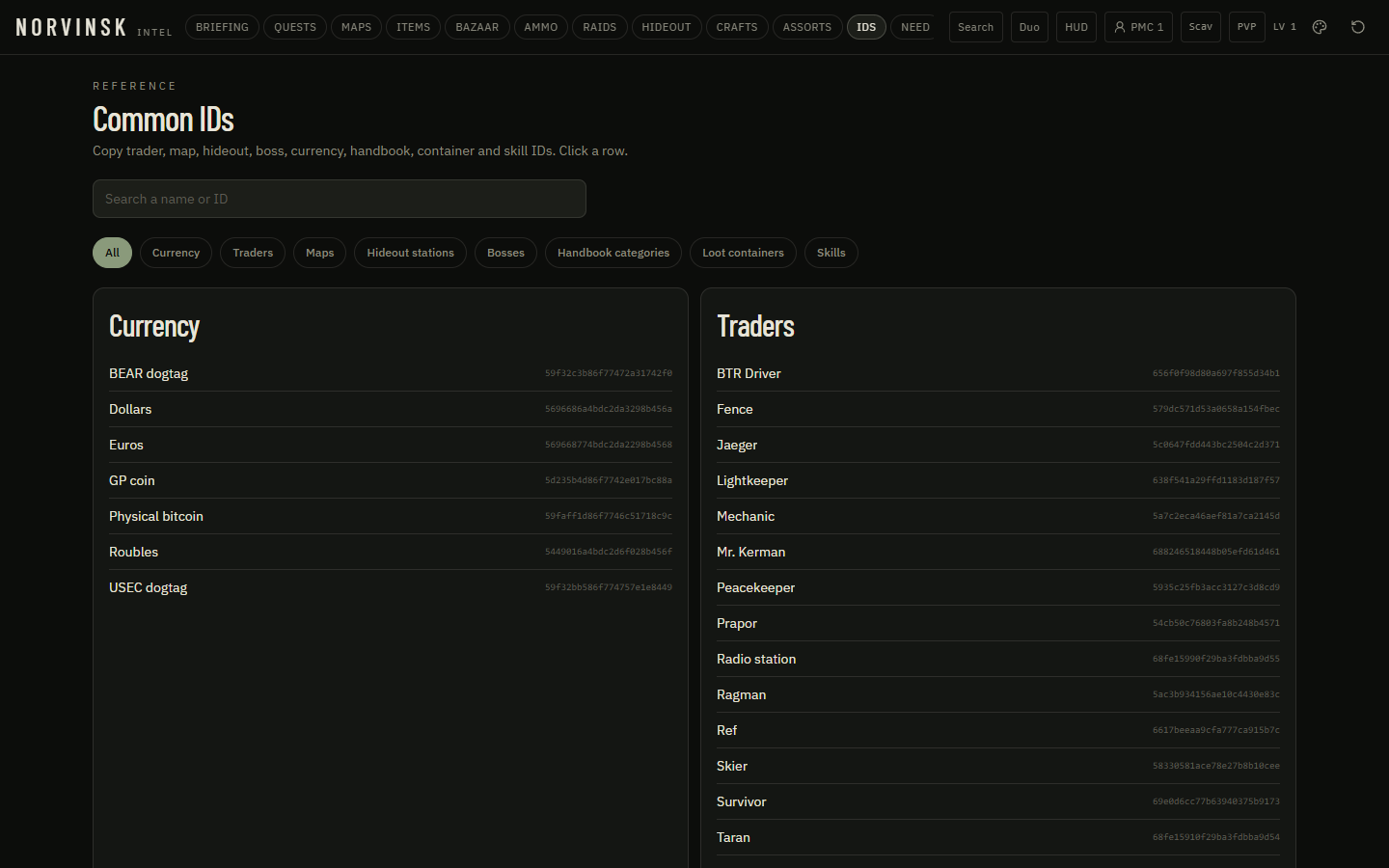
IDs — Copy the ID, leave the guesswork

IDs

Copy the ID, leave the guesswork

Traders, maps, bosses, currencies, handbook, containers, and skills — one click copies the id.

  • Search a name or an id
  • Copy with one click
  • Filter by group
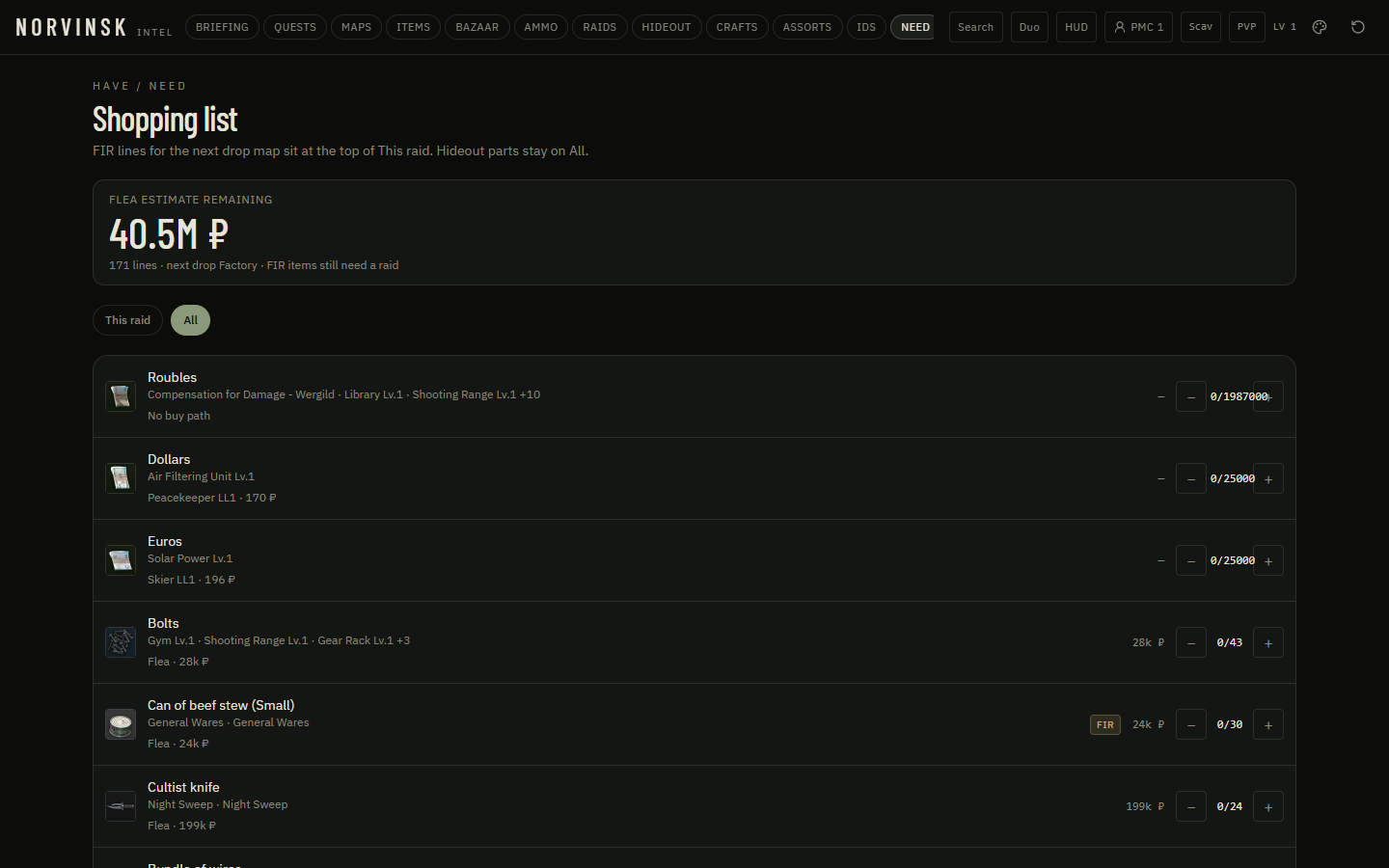
Need — Everything you still owe

Need

Everything you still owe

Wipe-wide or this raid. FIR versus buy. Cheapest source and restock on every line.

  • Switch this-raid and full-wipe views
  • See buy versus found-in-raid
  • Read ₽ and restock on each row
  • Tick items off as you secure them
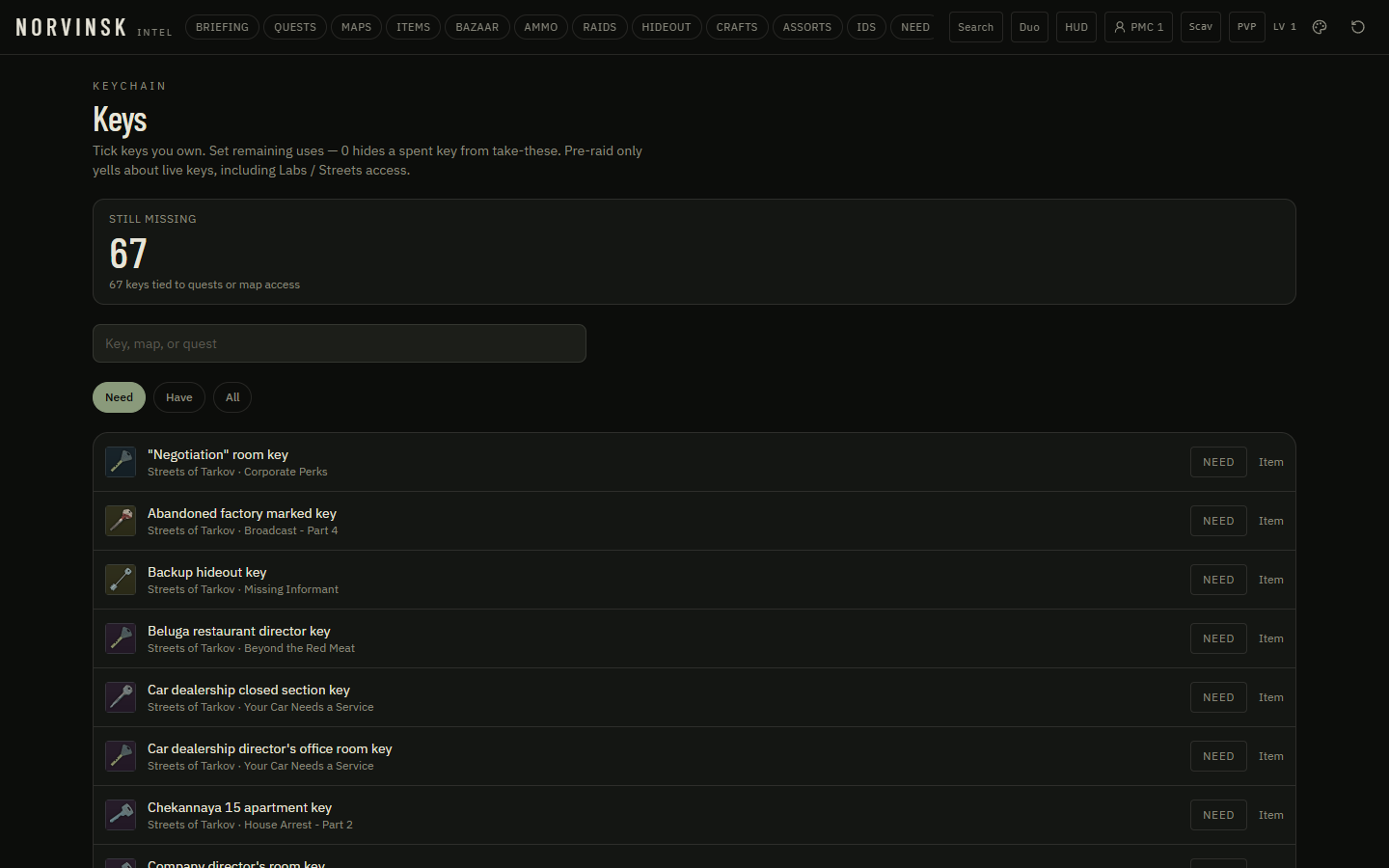
Keys — The keychain and what each key opens

Keys

The keychain and what each key opens

Own it or not, how many uses, and which door on which map. Take the right ring into the raid.

  • Mark keys you already hold
  • See uses remaining where the catalog has them
  • Open the map those doors sit on
  • Filter to keys still needed for quests
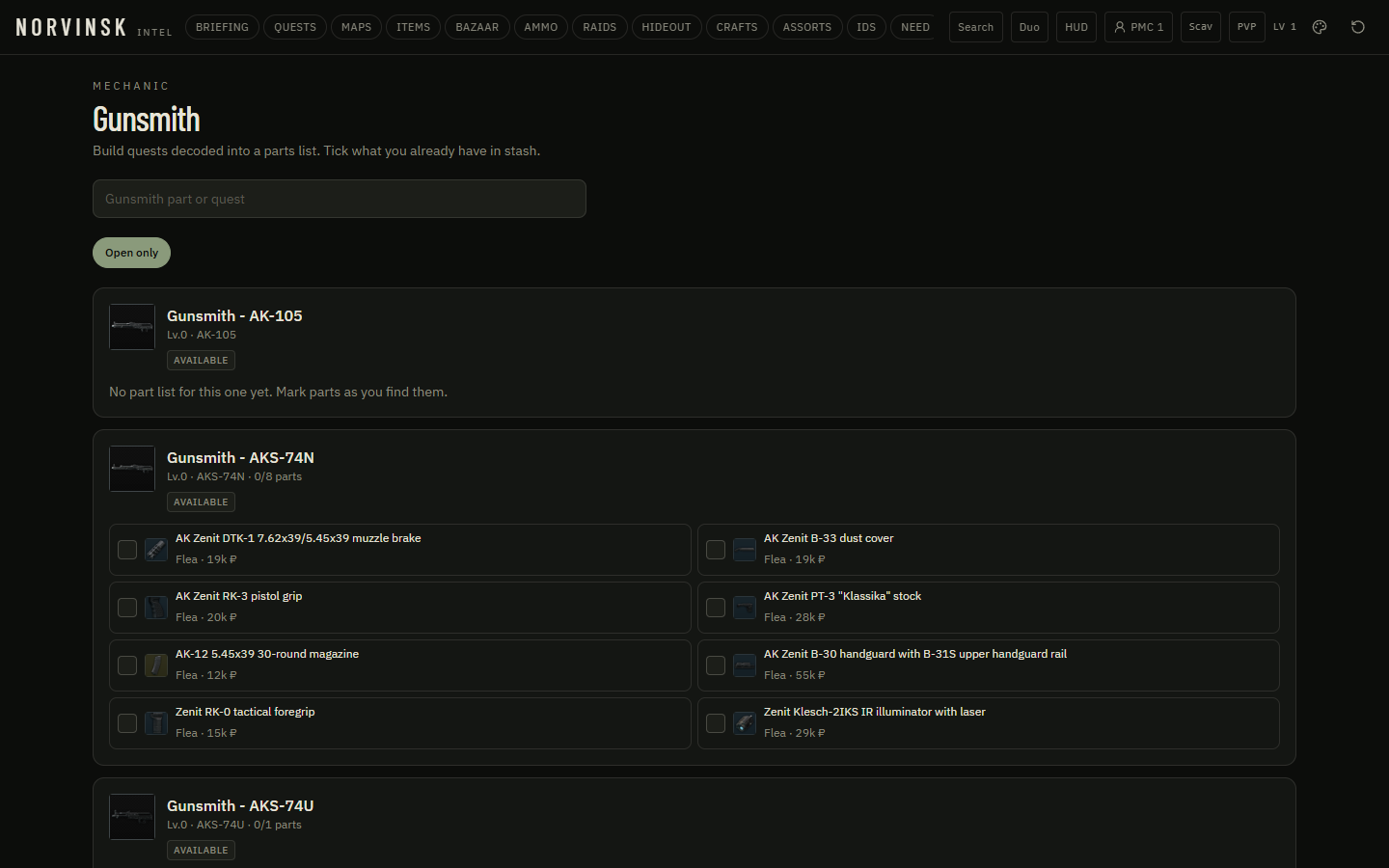
Smith — Gunsmith as a parts list

Smith

Gunsmith as a parts list

Every Mechanic build you still owe, the weapon, and the parts. Check a part when it hits the stash.

  • See remaining Gunsmith tasks and part counts
  • Tick parts as you find or buy them
  • Carry those parts onto Need and Bazaar with a Needed now stamp
  • Open the quest when you are ready to turn it in
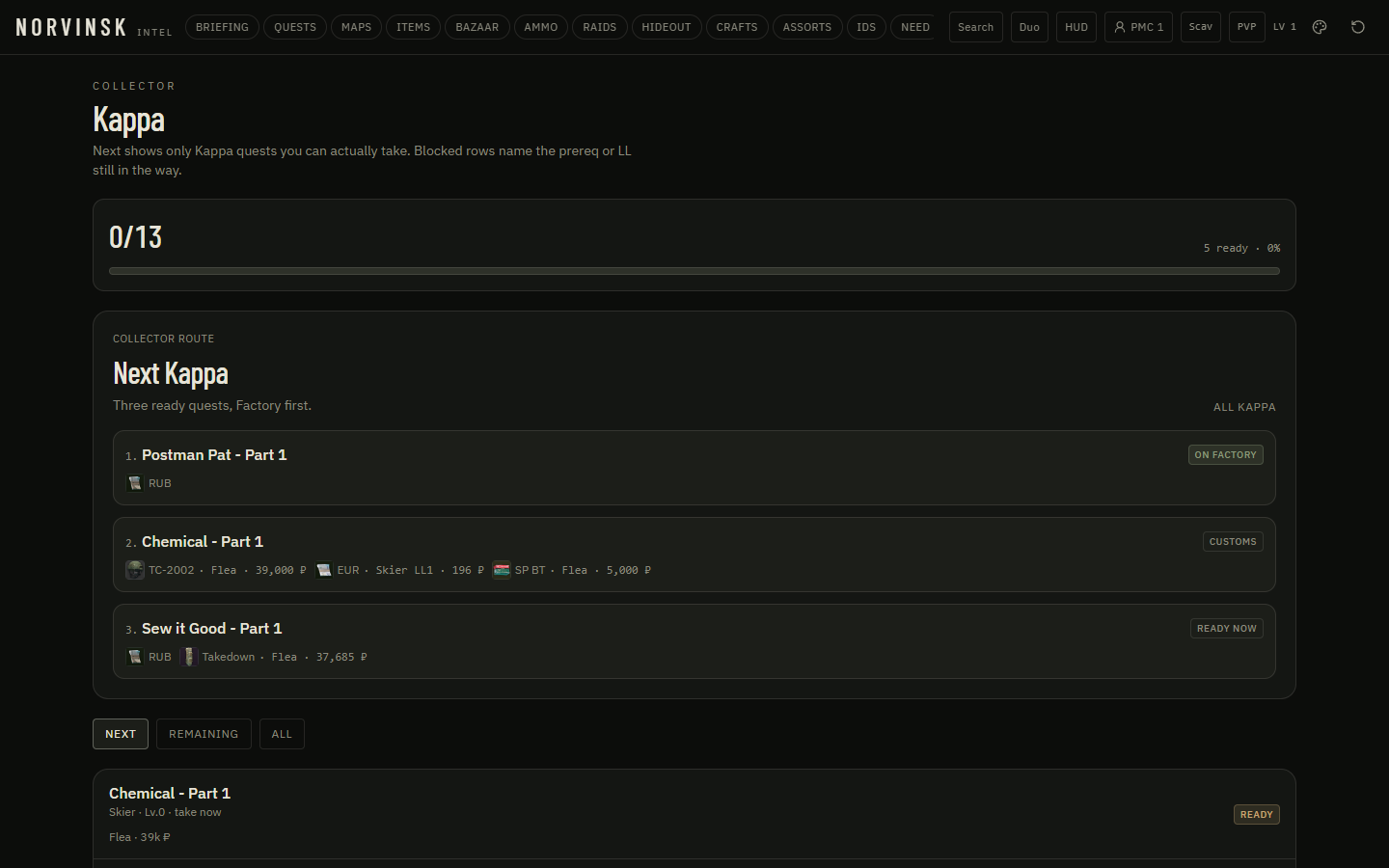
Kappa — The Collector route, three deep

Kappa

The Collector route, three deep

Next shows only Kappa quests you can actually take. The first three put the map you are about to run first.

  • See three ready Kappa quests, this drop’s map first
  • Read the buy hint and cheapest source on required items
  • Skip rows still blocked by a prereq or loyalty
  • Track remaining Collector progress
HUD — Raid-only window for the second monitor

HUD

Raid-only window for the second monitor

Mini map, You, next extract, near quest, shopping list, restock, duo, and Done on tracked objectives. Always-on-top from the desktop menu.

  • Keep a compact raid view beside the game
  • Mark objectives done without opening the full board
  • See the shopping list and restock clock
  • Watch a duo’s You ping on the snippet
Duo — One teammate, live You, named pins

Duo

One teammate, live You, named pins

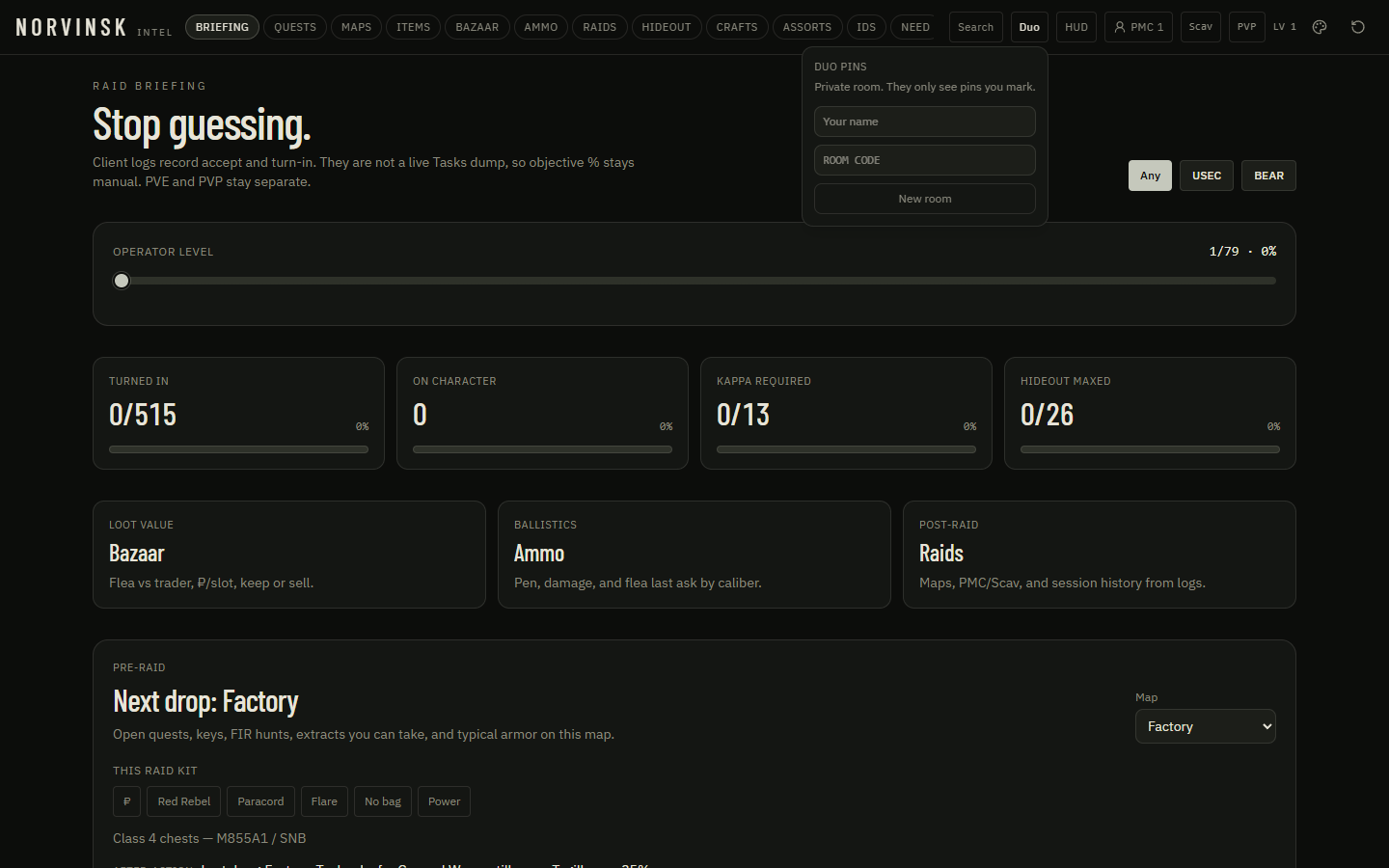
A private room. They see the marks you place and a live You ping. Your name rides on the pin.

  • Start or join a room with a short code
  • Ping You so your duo sees you on the map
  • Share marks with the author on the label
  • Leave the room when the night is over

Get NORVINSK

Windows executable only

Download the Setup or the Portable build. That is the whole package — no source, no extra tools. If a download hangs at halfway, cancel it in the browser download tray, then grab Setup only.

Current build is 1.0.12. Do not run older Setups. Progress stays on this machine. SmartScreen may ask you to choose More info → Run anyway on an unsigned build.